Pokecut's Blue Background Passport Photo Tool, Reviewed
By: AI Collection
At a glance

Create Blue Background Passport Photo with Pokecut
FreeIt's 11pm, your Indonesia visa appointment is tomorrow morning, and the application form just told you the passport photo needs a plain blue background — not white. No studio is open. This is the exact situation Pokecut's blue-background passport photo tool is built to catch.
What it actually is
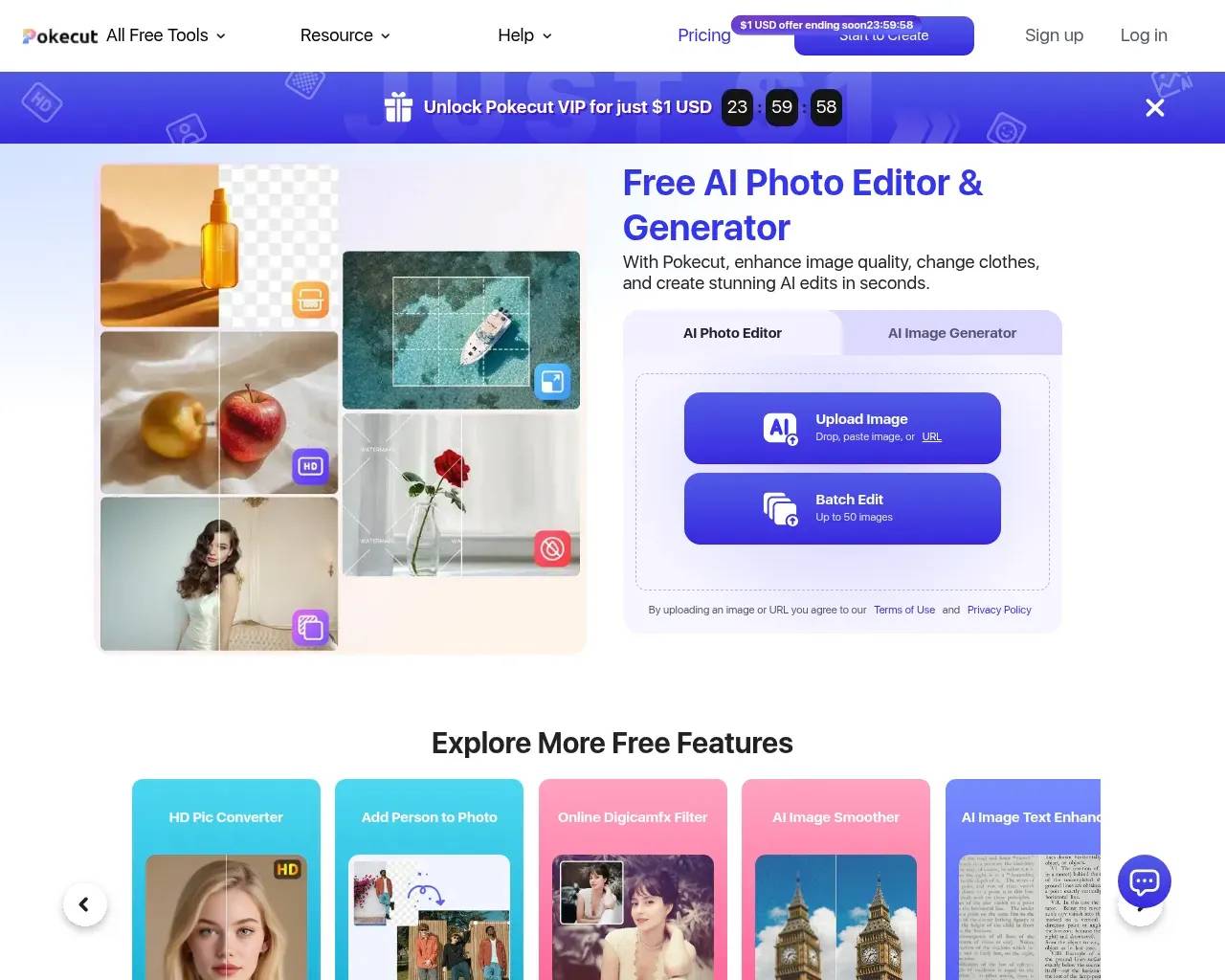
Pokecut isn't a single-purpose passport photo app — it's a broader free AI photo editor (background remover, photo enhancer, magic eraser, image generator) that's been live since at least early 2022, per the Wayback Machine's archive history. The blue-background passport tool is one of dozens of narrow, purpose-built pages under that umbrella, aimed at people who land on it from a search for exactly this problem rather than people browsing a product homepage.
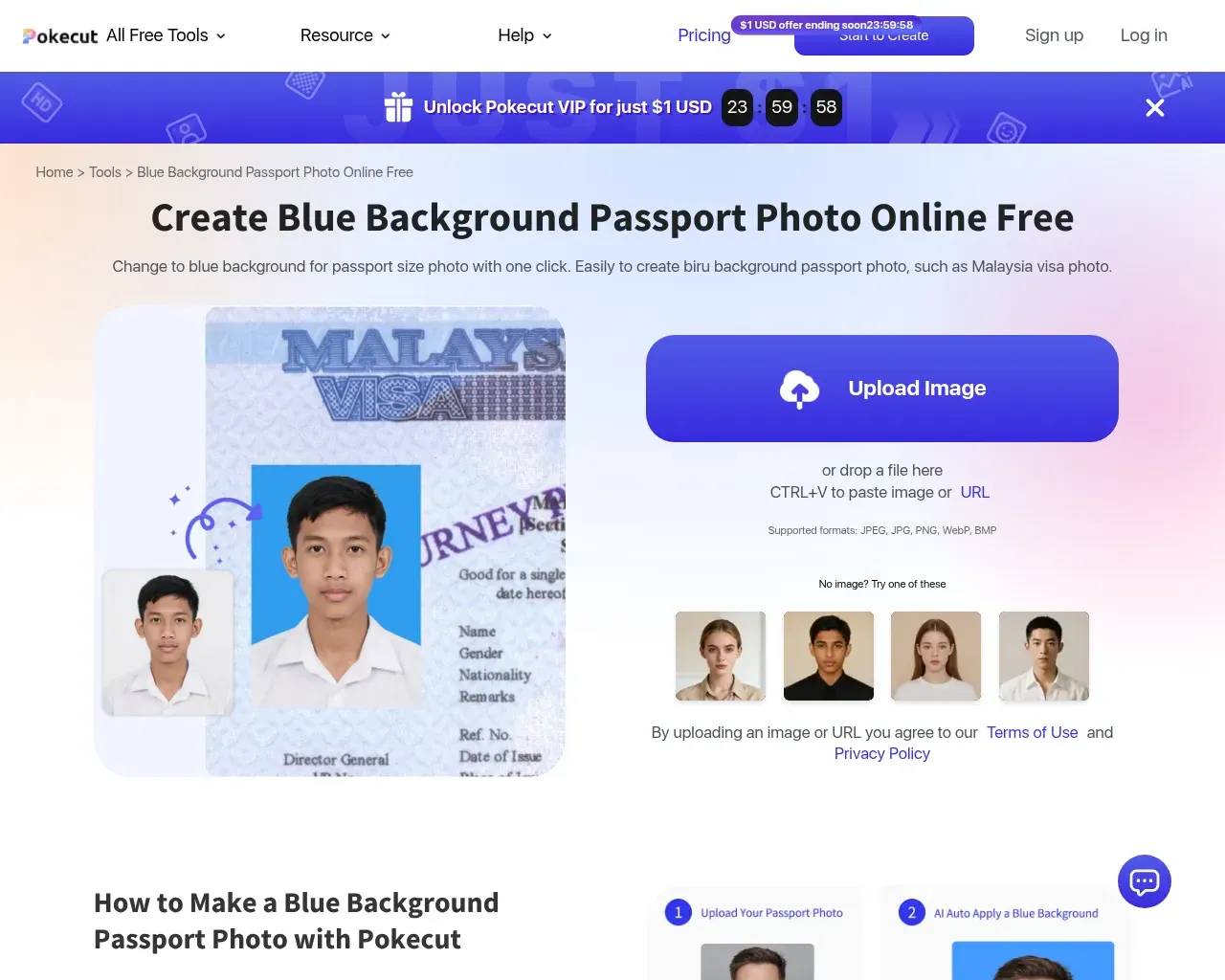
The workflow is three steps: upload a photo (JPG, PNG, BMP, or WebP), let the AI detect the subject and swap in a blue background — with the option to dial in a specific RGB value rather than a generic "blue" — then download the result in HD. No account, no studio visit.
Where a blue background is actually required
This is the part worth getting right before you use any tool: blue backgrounds aren't universal. Pokecut's own FAQ correctly flags that Malaysia, Indonesia, and Qatar visa photos commonly call for blue, while the US and EU generally still want white. That distinction matters more than the editing tool itself — using the wrong color gets a photo rejected regardless of how clean the cutout is. Outside of travel documents, the same blue-background output doubles as a low-effort professional headshot for a resume or LinkedIn photo, where a soft blue reads as more polished than a stark white wall.
One practical detail their FAQ gets right and that most generic background-removal tools never mention: what you're wearing matters as much as what's behind you. Wearing blue clothing against a blue background risks blending into the backdrop at the edges, which is exactly where AI cutout tools already struggle most — Pokecut's own advice is to wear a contrasting color like white, black, or dark grey, which is also just good practice for getting a passport photo accepted on the first try.
How well the AI handles the actual job
The hard part of any background swap is the edges — hair strands, glasses frames, stray flyaways. That's also where independent reviews on G2 consistently point: reviewers praise the background remover for handling hair and fine edges without the rough halos that cheaper tools leave behind, particularly for portrait-style shots like a passport photo. The same reviews are equally clear about where it falls short: support response times are a recurring complaint, and on more complex images some users still see rough edges that need manual touch-up rather than a one-click fix.
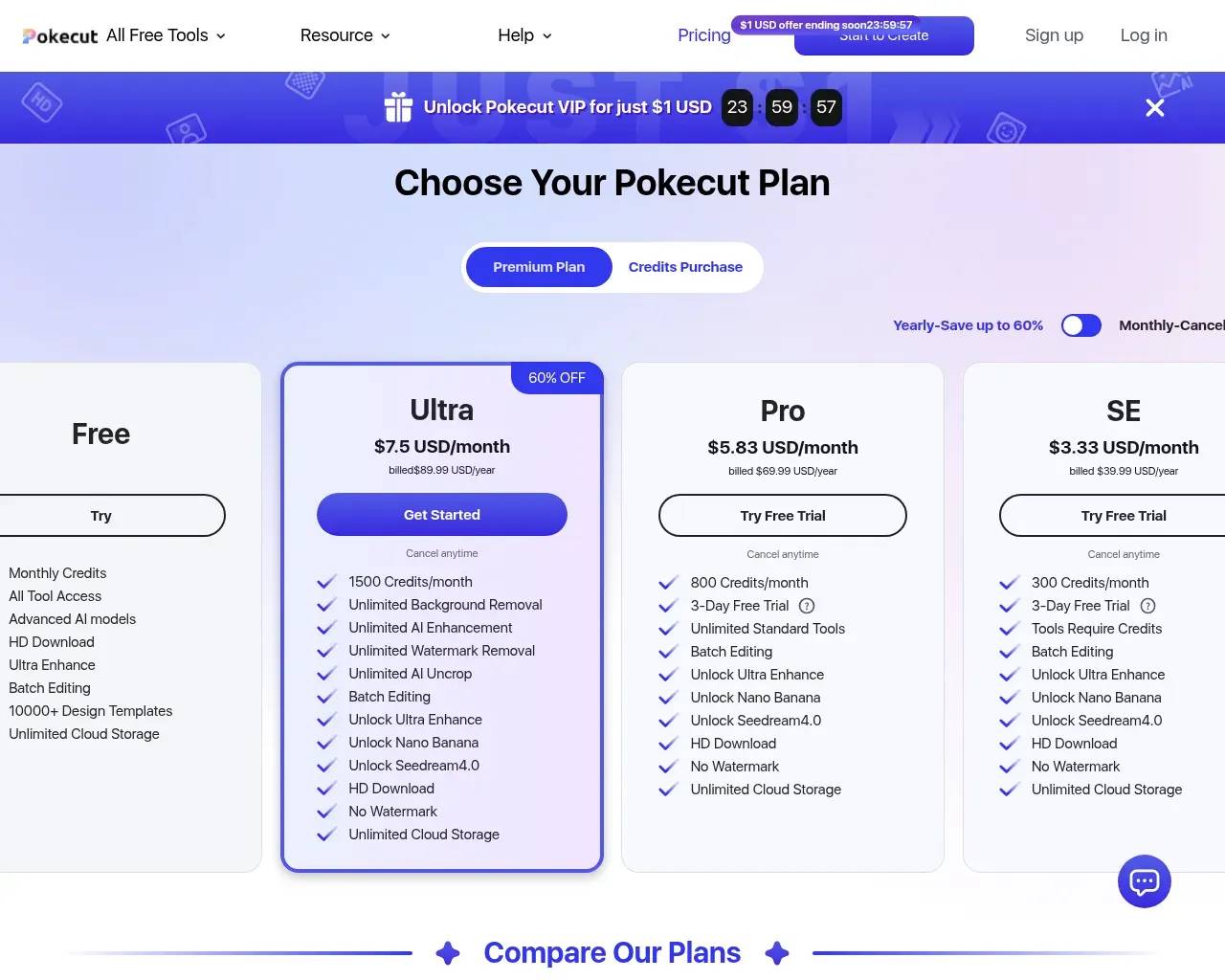
The free tier is capped — a handful of daily credits cover basic edits, with higher resolution and bulk use sitting behind a paid credit pack (the site lists package sizes from 100 credits up to 5,000, aimed at people doing this regularly rather than once for a visa). For a one-off passport photo, the free tier is the relevant test, and it's the one that matters for most people landing on this specific page.
Who this is actually for
It's a good fit for anyone who needs a compliant photo fast and isn't trying to avoid a studio out of principle — visa applicants on a deadline, people who need a quick badge photo for a new job, freelancers who want a headshot upgrade without booking a photographer. It's a weaker fit for anything where a studio-certified photo is explicitly required (some consulates do specify a physical studio stamp, not just a digitally-correct background), or for someone editing dozens of staff photos at once who'd rather have a desktop batch tool than a web form.
A couple of considerations worth knowing going in, given the source material above: the testimonials featured on Pokecut's own page are understandably curated and skew positive, so treat them as marketing copy rather than independent verification — the G2 reviews are the closer thing to an outside read. And because there's no offline mode or local processing, a photo you upload does leave your device, which matters if the photo is for something sensitive like a government ID — worth checking Pokecut's privacy policy if that's a concern before uploading.
The bottom line
For the specific job — getting a correctly colored, reasonably clean blue-background passport or ID photo without a studio trip — the tool does the basic job competently and for free, with the same edge-detection quality that independent reviewers credit Pokecut's broader background tools for. It's not a substitute for an actual studio photo where one is legally required, and the paid tiers exist mainly for people who need this kind of edit repeatedly rather than once.
Sources consulted
- Pokecut — blue background passport photo tool — workflow steps, FAQ on which countries require blue, testimonials, "trusted by" claims
- Pokecut homepage — broader product scope (background remover, enhancer, image generator)
- Pokecut llms.txt — full feature list confirming the tool sits inside a wider AI photo-editing suite
- Pokecut pricing — credit-pack tiers
- Wayback Machine availability check for pokecut.com — earliest archive March 2022, used for the longevity claim
- Web search aggregating G2 user reviews for "Pokecut AI Powered Online Photo Editor" — strengths (hair/edge detection) and weaknesses (support response time, occasional rough edges, free-tier limits)
Published on: June 26, 2026
Looking for alternatives to Create Blue Background Passport Photo with Pokecut? See all Create Blue Background Passport Photo with Pokecut alternatives →
Have an AI tool of your own? Submit it below and get a free, in-depth product review article — just like this one.
Add your AI tool in seconds
Paste your URL and we'll draft the listing. You review and edit every field before submitting.