Crafting Visual Stories with Free Video Editing Tools
By: AI Collection
In the digital age, video editing has become an integral part of storytelling, content creation, and communication. Whether you're a seasoned content creator or an aspiring enthusiast, having access to robust editing tools is essential. With the rise of social media platforms and the demand for engaging visual content, there's a growing need for accessible and user-friendly editing software. Fortunately, there's a solution that caters to both amateurs and professionals alike: CapCut.
Your Guide to Powerful Free Editing Tools
CapCut stands out as a versatile and intuitive video editing platform that offers a wide array of features without the hefty price tag. As a free video editing software, it provides users with a comprehensive suite of tools to bring their creative visions to life. From basic trimming and cutting to advanced effects and transitions, CapCut empowers users to unleash their creativity without breaking the bank.
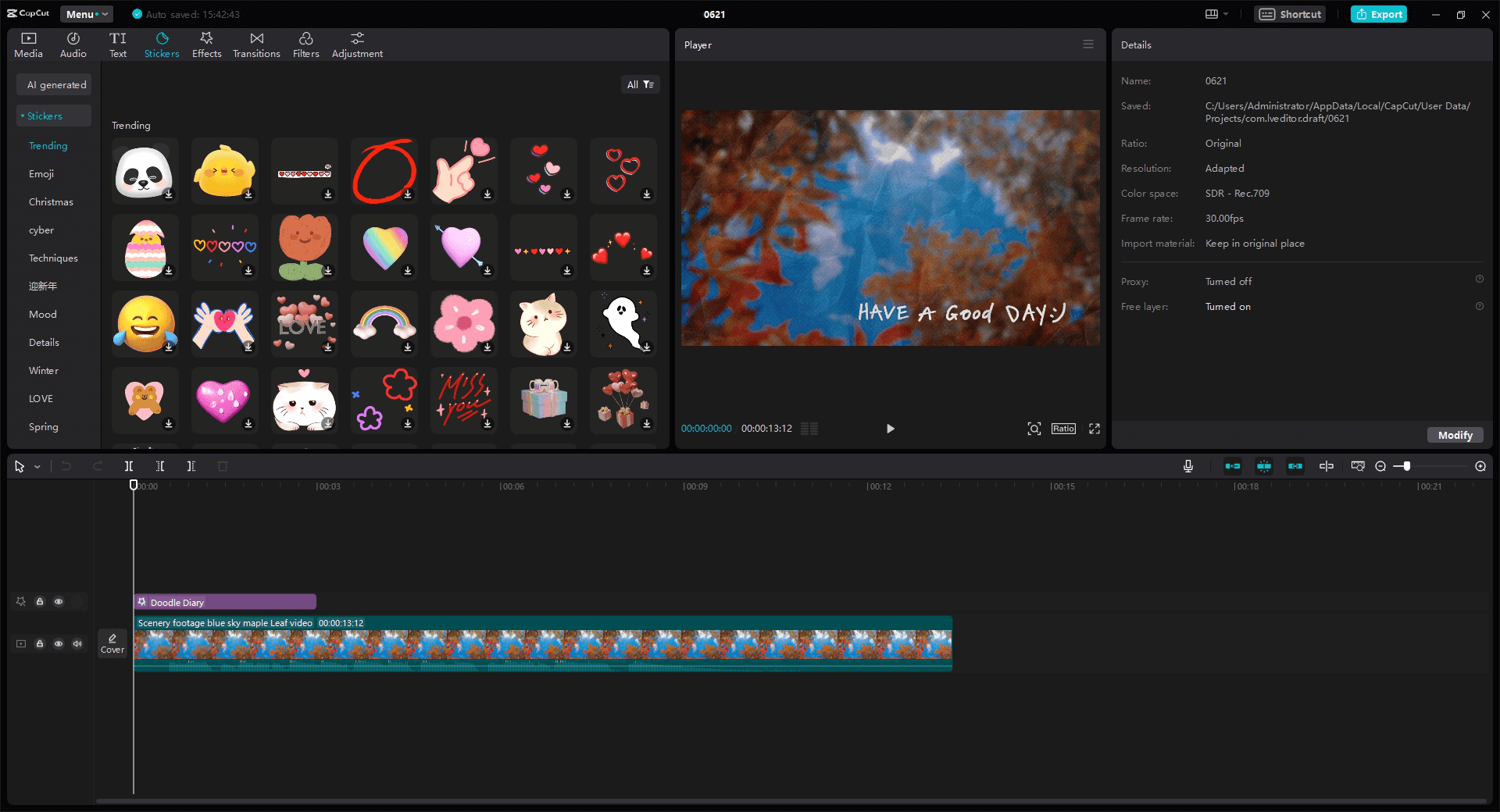
One of the standout features of CapCut is its user-friendly interface, which makes navigating the editing process seamless and straightforward. Whether you're a novice or an experienced editor, you'll find the layout intuitive and easy to navigate. With CapCut, you can dive right into editing without feeling overwhelmed by complex menus or convoluted tools.
Step 1: Getting Started
To begin your editing journey with CapCut, simply download the desktop video editor from the official website. Once installed, launch the software and familiarize yourself with the interface.
Step 2: Importing Footage
Next, import your footage into CapCut by either dragging and dropping files directly into the timeline or using the import function. CapCut supports a range of file formats, allowing you to work with various media types seamlessly.
Step 3: Basic Editing
Once your footage is imported, you can start editing right away. Use the trimming and cutting tools to remove unwanted sections, rearrange clips on the timeline, and adjust the duration of your video.
Step 4: Adding Effects and Transitions
CapCut offers a vast library of video effects and filters to elevate your footage and add visual flair to your projects. Experiment with different effects, transitions, and filters to achieve the desired look and feel for your video.
Voice Changer
In addition to its robust editing capabilities, CapCut also includes a voice changer feature that allows users to manipulate audio tracks with ease. Whether you're looking to alter your voice for comedic effect or enhance the mood of your video, the voice changer tool provides a range of options to suit your needs.
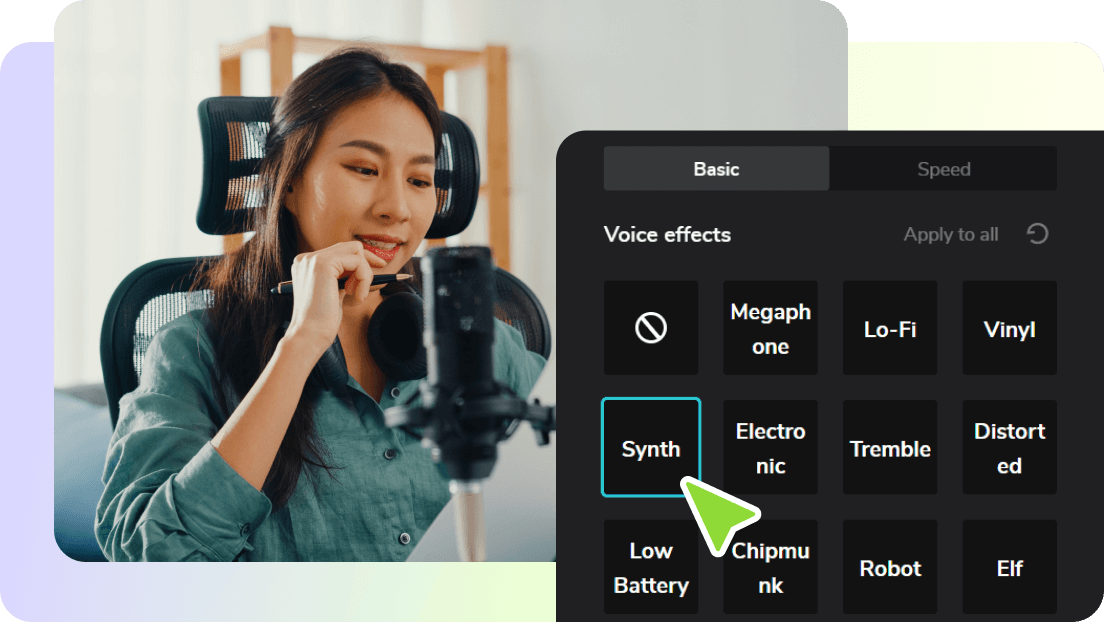
With CapCut's voice changer, you can adjust the tone, pitch, and voice speed to create unique and captivating audio effects. Whether you want to sound like a chipmunk, a robot, or anything in between, the possibilities are endless.
Step 5: Using the Voice Changer
To utilize the voice changer feature in CapCut, simply import the audio track into the software and navigate to the audio effects menu. From there, you can experiment with different presets and settings to achieve the desired effect. Once you're satisfied with the result, you can apply the changes and seamlessly integrate the modified audio into your project.
Video Effects
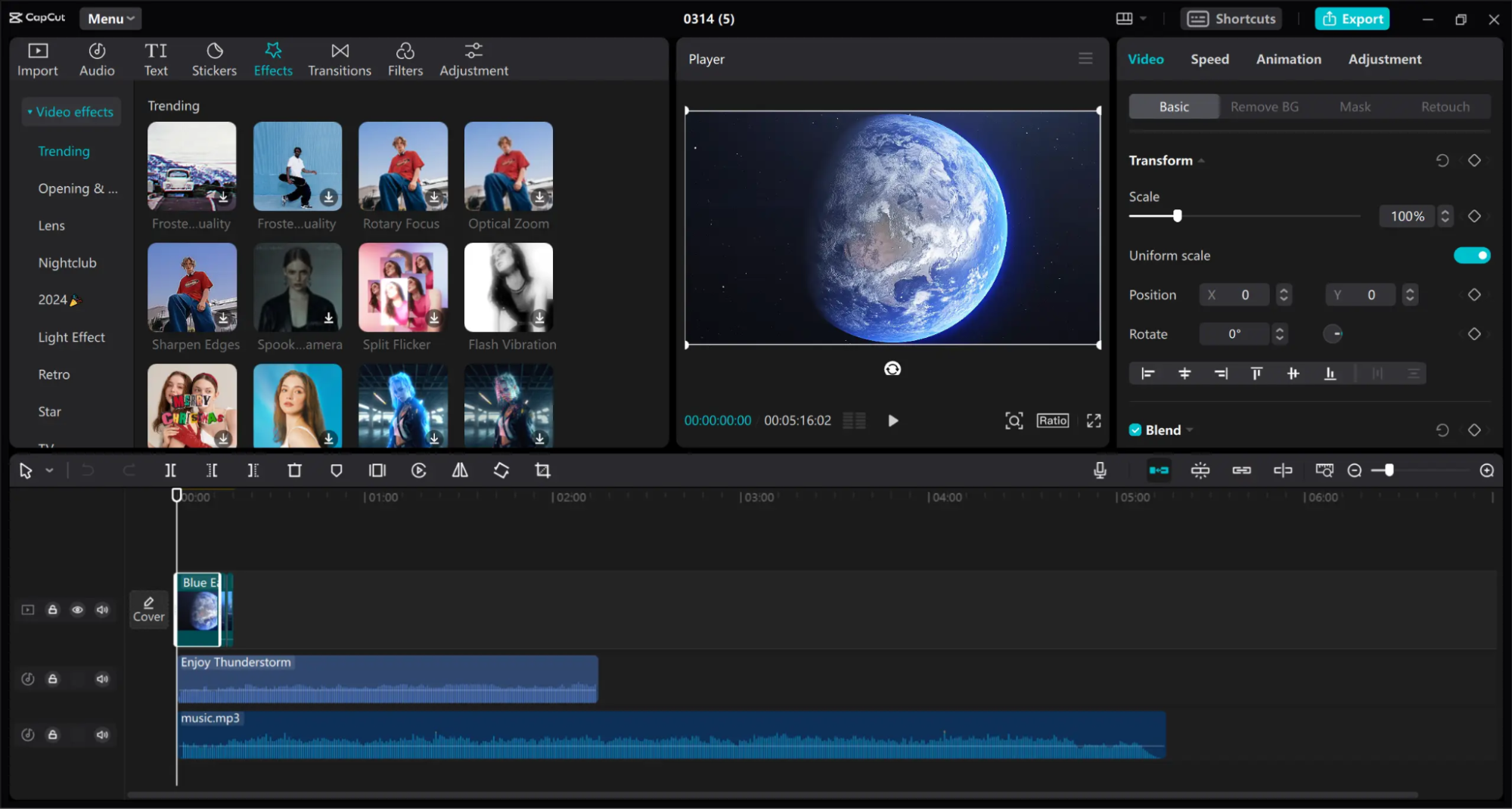
Another standout feature of CapCut is its extensive collection of video effects and filters, which allow users to enhance their footage and add a professional polish to their projects. Whether you're looking to add cinematic flair, vintage charm, or futuristic vibes to your videos, CapCut's library of effects has you covered.
Step 6: Exploring Video Effects
To access the wide range of video effects and filters in CapCut, simply navigate to the effects library and browse through the available options. From there, you can preview different effects, apply them to your footage, and customize them to suit your preferences.
Step 7: Fine-Tuning and Exporting
Once you've finished editing your video and adding effects, it's time to fine-tune the details and prepare your project for export. CapCut offers a range of tools for adjusting color, brightness, and contrast, as well as options for adding text overlays and graphics.
After fine-tuning your project, you can export your video in your desired format and resolution, ready to share with the world.
Conclusion
CapCut is a versatile video editing software, offering a rich array of features and functionalities completely free of charge. It excels in both basic editing tasks and advanced effects and filters, providing users with the tools to bring their creative visions to fruition. Whether you're a seasoned content creator, a burgeoning social media influencer, or an amateur filmmaker, CapCut equips you with everything necessary to craft compelling and captivating videos. Also, if you are editing for personal enjoyment or professional endeavors, CapCut remains an indispensable asset in the toolkit of anyone seeking to elevate their video editing prowess and storytelling capabilities.
Published on: July 8, 2024