How to Make Voices Sound Better in Your Audio by Using Audioenhancer.ai?
By: Audioenhancer.ai
How to Make Voices Sound Better in Your Audio by Using Audioenhancer.ai?

Poor voices in audio and videos can be the most frustrating thing for listeners. You may not have professional studio-quality equipment for your recordings, but it does not make you less capable of editing your voices to sound better.
In this post, we’ll introduce you to one of the most reliable and easy-to-use Audio editing software – Audioenhancer.ai.
So, before further delay, dive in and learn how you can use this audio enhancement tool to its full potential.
Audioenhancer.ai – A Free Audio Editing Tool
As the name suggests, Audioenhancer.ai is an AI-powered audio enhancement platform to help you edit your voice. It’s open-source software that simply analyzes your input media files and edits them to make voices sound great.
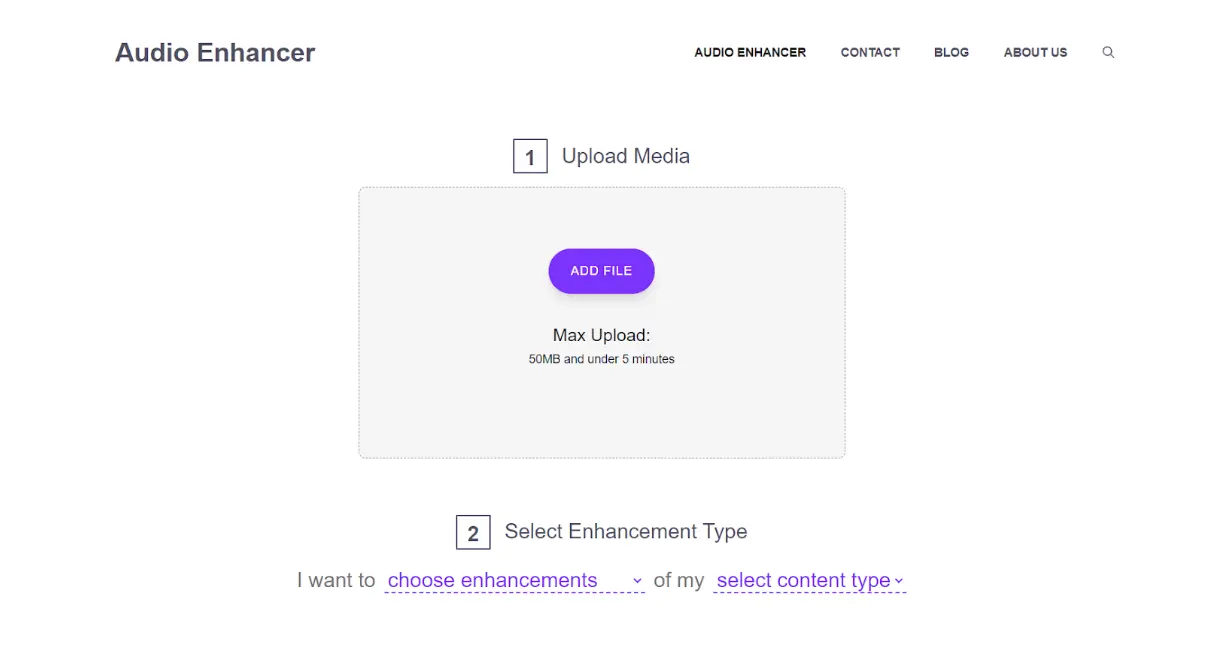
This online audio editor tool can improve overall sound quality, remove background noise, clean up speeches, and adjust the volume and levels of any type of content.
Not to mention, there are a plethora of paid options available that possess more in-depth editing features and settings.
But if you want a free, easy-to-use, and basic selection of key features tailored for audio enhancement, audioenhancer.ai is for you.
Let’s have a look at how you can perform audio editing with Audioenhancer.ai – how to remove background noise, how to improve the overall sound quality, how to clean up the speeches, and how to adjust the loudness and volume levels of a recording.
How to Remove Background Noise?
Background noises in audio and video files are both distracting and challenging for listeners. One of the primary reasons to prioritize the removal of these ambient sounds is the enhanced clarity it brings.
When audio is clear, the main content—be it dialogue, music, or other integral sounds—stands out prominently This sound clarity is also a mark of professionalism.
Moreover, the importance of clear audio can't be stressed enough when it comes to audience engagement. If listeners or viewers have to constantly strain to discern the primary content from the noise, they're more likely to disengage. In contrast, clean, noise-free audio captivates them and it reduces the likelihood of them switching off or skipping the content.
So how can you remove background noises from your audio content?
Well, it's pretty straightforward using Audioenhancer.ai. All you need is an audio or video file having background noises.
Here’s how you use this tool:
- Open the Audioenhancer.ai website using your preferred browser.
- Upload your audio or video file from your device.
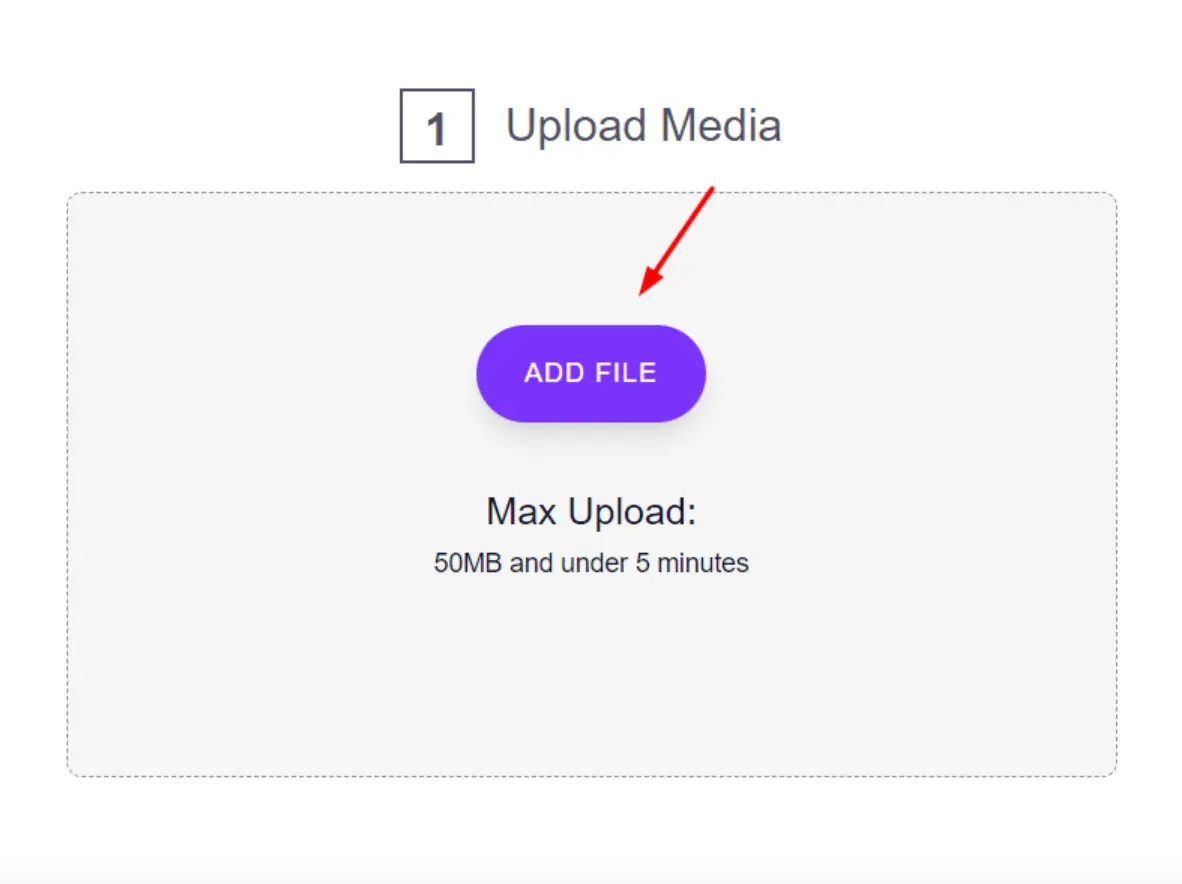
- Once uploaded, go to the enhancement settings. Here, you need to select the “remove background noises”
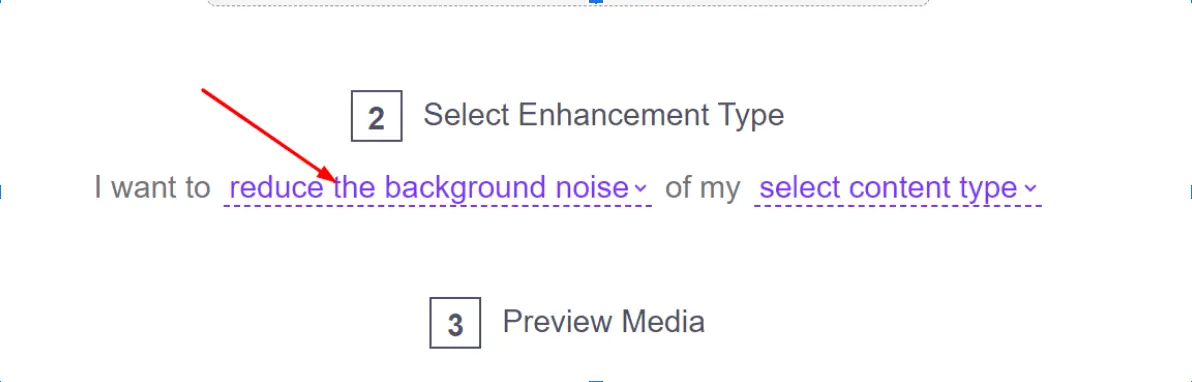
- After the initial adjustments, you will see a dropdown menu labeled "Choose Content-Type". This menu will list different media categories like mobile videos, podcasts, educational videos, and more. Select the one that best describes your content.

- Before you apply the changes permanently, it's always a good idea to listen to a preview.
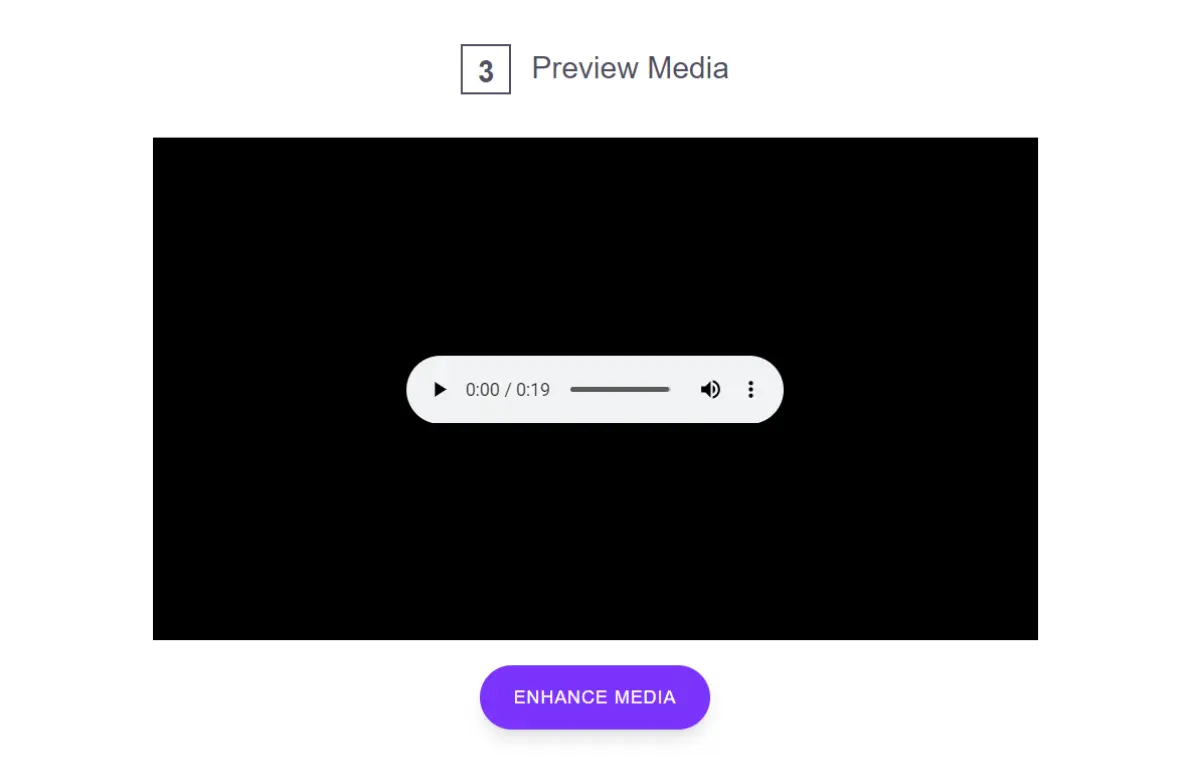
- If you're happy with the results, go ahead and download the improved file.
- Click on the "Download" button, and the optimized media will be saved to your device, typically in mp3 format.
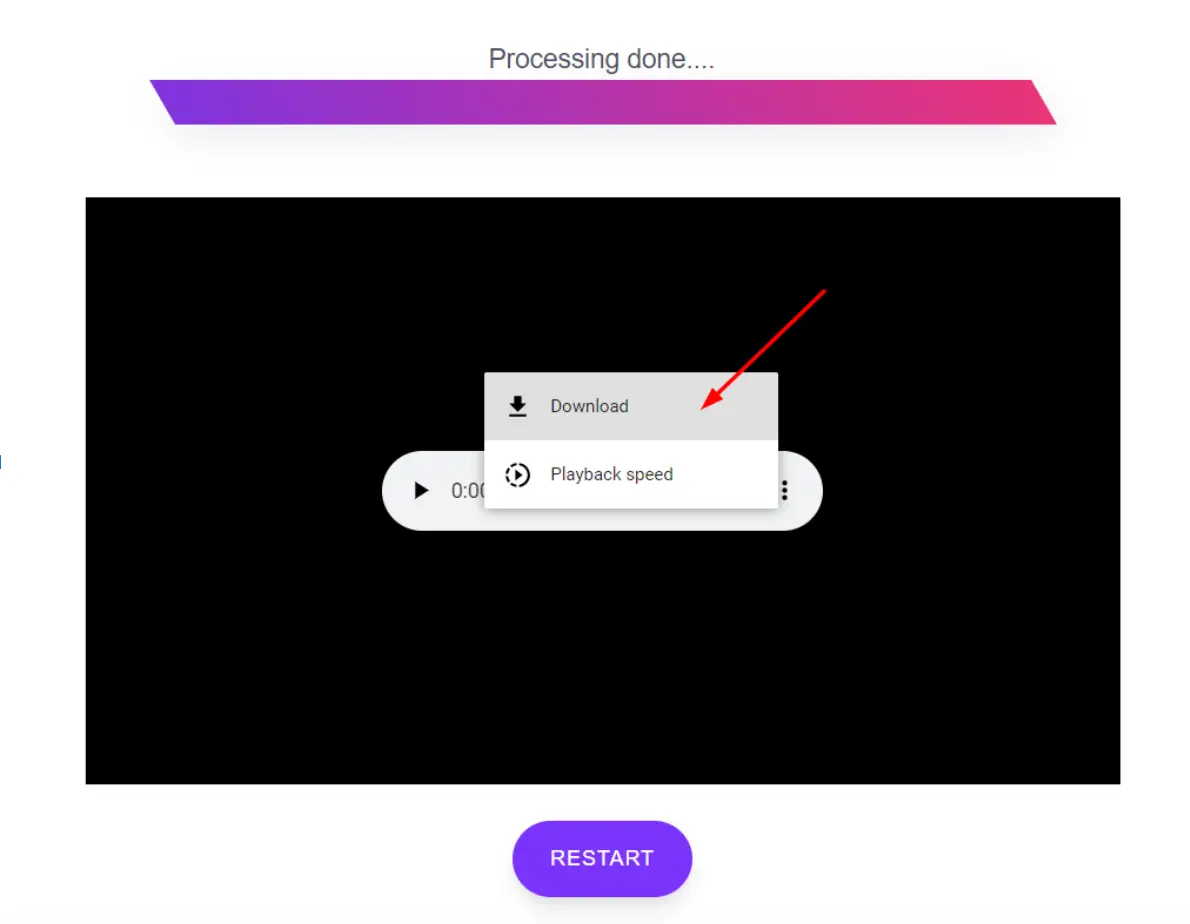
- If you wish to review your content at different speeds, use the playback controls to adjust accordingly.
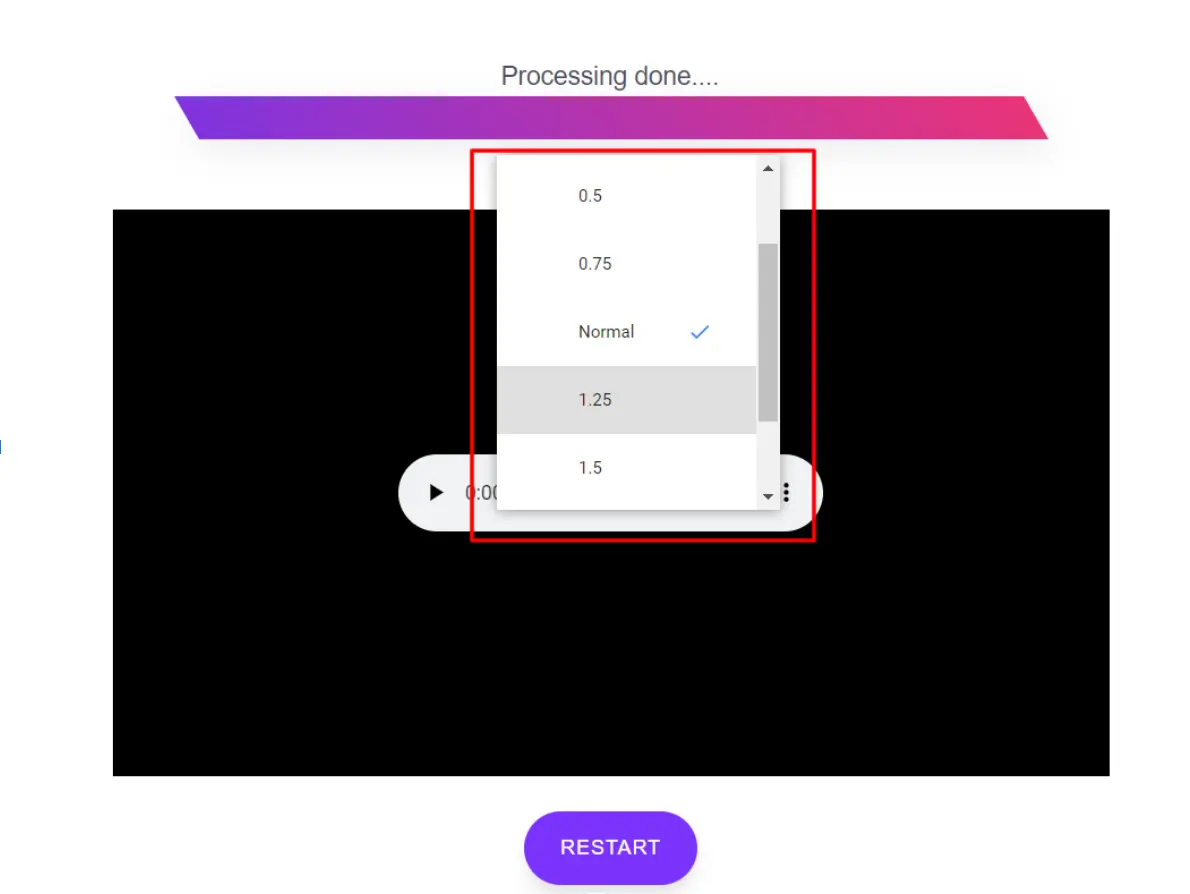
That’s it! Your voice content is crystal clear with no unwanted noises in the background, and ready for you to use.
Improving the Overall Sound Quality
Sound quality is the bedrock of any audio or video production. Audioenhancer.ai is the best online tool for enhancing the overall quality of your sound.
The platform uses advanced AI algorithms to automatically analyze and make necessary adjustments in the overall tonal balance, richness, and depth of your audio.
By filtering out irregularities and ensuring that all elements of the audio are harmonious, Audioenhancer.ai brings a professional touch to your content.
To enhance the sound quality of your audio using Audioenhancer, the process closely mirrors the steps you are already familiar with.
- First, upload your sound file into Audioenhancer.
- For this specific task, make sure to select the "Improve Sound Quality Settings."
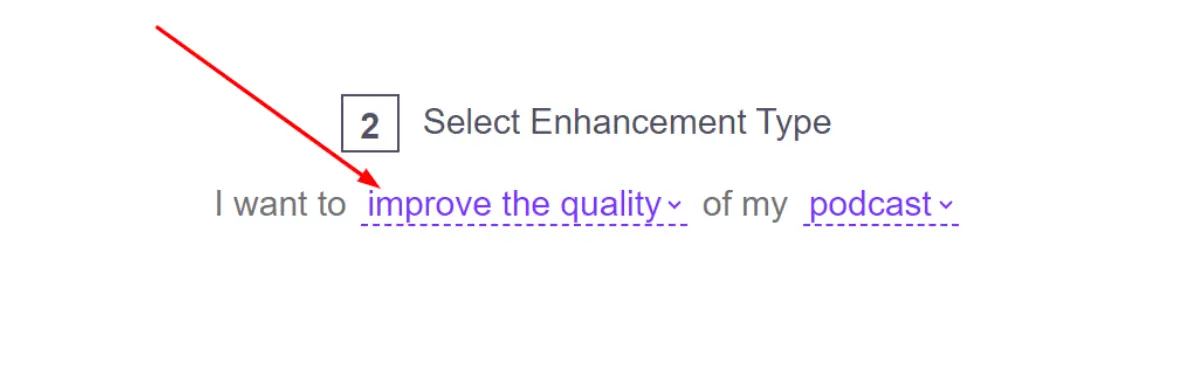
- Choose your content type
- Hit “enhance media”
And there you go!
Cleaning Up the Speeches for Clarity
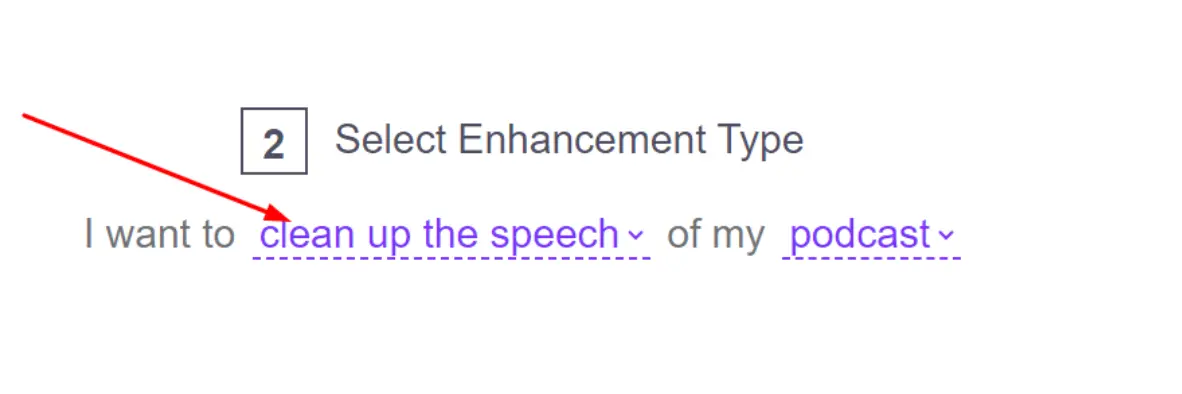
Speech clarity is essential, especially in content where the spoken word is the primary focus, such as podcasts, interviews, or lectures. Audioenhancer.ai comes equipped with this specialized setting to address this. By isolating vocals and minimizing background disturbances, the platform ensures that every word is crisp and discernible.
To activate this feature, you simply need to select the "Clean Up the Speech" setting and follow the rest of the steps as described earlier.
Fixing the Loudness and Levels
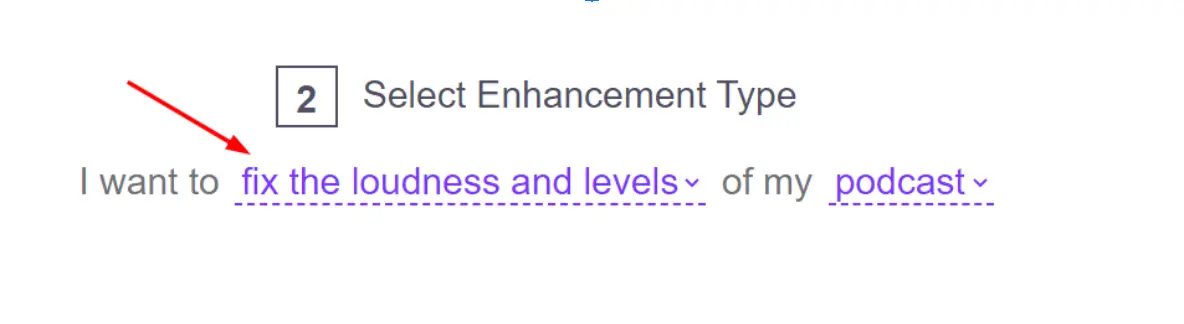
Inconsistent audio levels can lead to a jarring listening experience. Too loud, and you risk distortion or discomfort for the listener; too soft, and your content may become inaudible. Audioenhancer.ai provides solutions to balance these levels effectively. With its automated leveling tools, the platform adjusts the loudness of your audio to ensure it remains consistent throughout.
From the sound enhancement settings, select "Fix the Loudness and Levels" and you will be directed through the rest of the process as you did before.
Wrapping Up!
With a plethora of audio-editing tools available, Audioenhancer.ai stands out as a reliable, user-friendly option for novices and professionals alike. The ability to remove background noise, enhance overall sound quality, clarify speeches, and adjust loudness and levels, all while being free, is an unbeatable combination.
Published on: November 23, 2023