- Category
- Video Editing
- Pricing
- Free
- Alternatives
- 6 similar tools
- Last updated
- 2 months ago
- Source
- Official site ↗︎
AI Collection Top Picks
Video Editing Category Picks
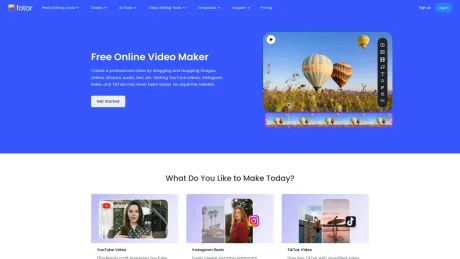
About Fotor free video maker
Convert text and image to video with our free AI video generator. Create videos with Kling, Seedance, Veo3, and more. Explore multiple video presets now.
What you get
Additional Information
Create Videos from Text Prompts Using Our AI Video Generator
Voilà! Here is another way to make videos faster—from the Fotor's AI video generator. It can quickly turn your photos, ideas, text prompts, and scripts into high-quality videos, all done automatically. With our AI video maker, there's no need to start from scratch, simply input your ideas, then choose your favorite styles, and you'll have an animated video ready to go.
Make Video Fast and Easily With Rich Stock Medias
Speed up your video creation with our tool that offers a wide range of stock images, videos, and audio tracks. It's designed to be easy to use, allowing you to quickly put video clips together and produce professional-looking videos. Whether you're making a marketing clip or a social media post, you'll have all the resources you need at your fingertips. Start creating impactful videos in no time!
Create Like a Pro with Effects, Stickers, and Transitions
Our video creator offers lots of effects, fun stickers, and smooth transitions, so you can elevate your video projects to professional levels. Whether you're making a personal montage or a business promo, our tools make it easy to add a polished touch and all of it without editing skills.
Animations? Gifs and Slidshow? You Name It!
With Fotor video maker, you can create dynamic animations, engaging GIFs, and high-quality slideshow visuals that capture your audience’s attention:
Animations:
Animate text, effects, or transitions with customizable motion paths and timing to bring your storytelling to life.
GIFs:
Generate looping GIFs perfect for social media engagement or website elements. Choose from a variety of effects and transitions to make your GIFs stand out.
Slideshows:
Combine images, video clips, and audio to create professional-looking slideshows for events, presentations, or online sharing.
Frequently asked questions
What is Fotor free video maker used for?
AI Video Generator: Powered by Kling, Seedance, Veo | Fotor.Is Fotor free video maker free?
Fotor free video maker is free to use.What are alternatives to Fotor free video maker?
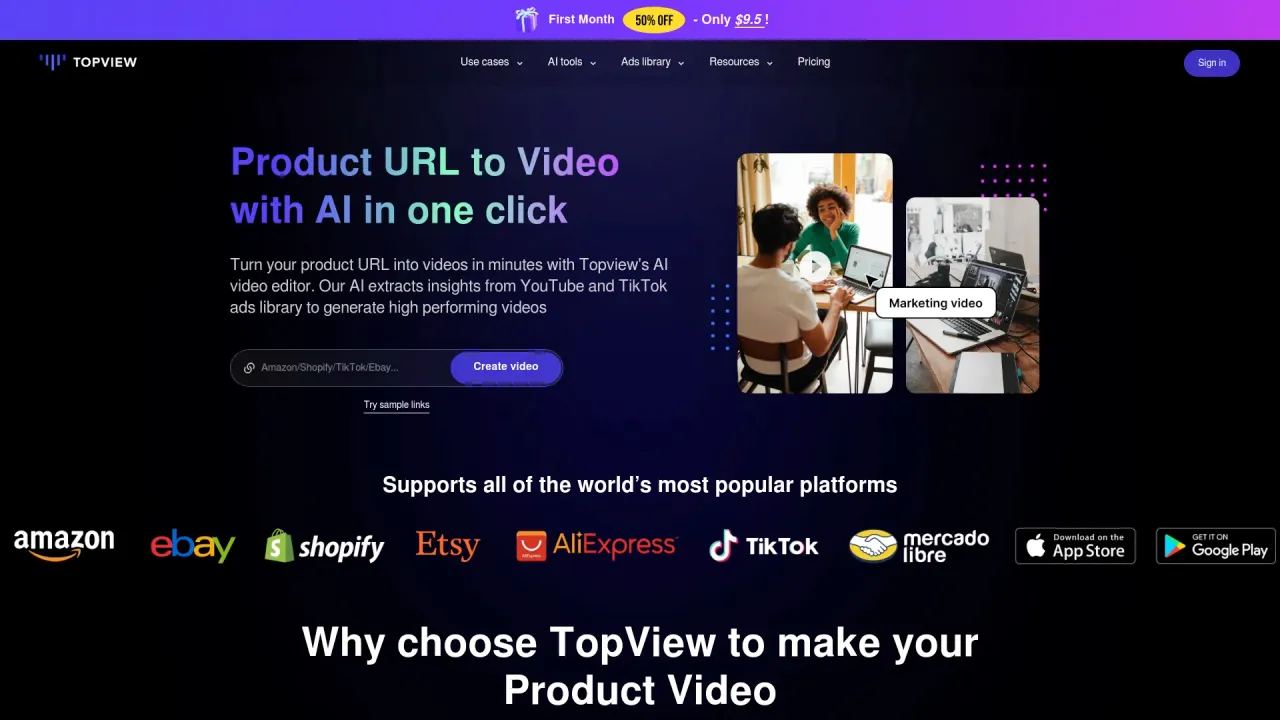
Top alternatives to Fotor free video maker include Klap App, AI video editor, Atlabs AI, Topview AI URL to Video, Colossyan.Where can I get Fotor free video maker?
Fotor free video maker is available at https://www.fotor.com/video-maker/.What category is Fotor free video maker in?
Fotor free video maker is listed in Video Editing.Make Video Fast and Easily With Rich Stock Medias
Speed up your video creation with our tool that offers a wide range of stock images, videos, and audio tracks. It's designed to be easy to use, allowing you to quickly put video clips together and produce professional-looking videos. Whether you're making a marketing clip or a social media post, you'll have all the resources you need at your fingertips. Start creating impactful videos in no time!Create Like a Pro with Effects, Stickers, and Transitions
Our video creator offers lots of effects, fun stickers, and smooth transitions, so you can elevate your video projects to professional levels. Whether you're making a personal montage or a business promo, our tools make it easy to add a polished touch and all of it without editing skills.Animations? Gifs and Slidshow? You Name It!
With Fotor video maker, you can create dynamic animations, engaging GIFs, and high-quality slideshow visuals that capture your audience’s attention:Animations:
Animate text, effects, or transitions with customizable motion paths and timing to bring your storytelling to life.GIFs:
Generate looping GIFs perfect for social media engagement or website elements. Choose from a variety of effects and transitions to make your GIFs stand out. ### Slideshows: Combine images, video clips, and audio to create professional-looking slideshows for events, presentations, or online sharing.Why does my AI video look unrealistic or inconsistent?
This usually comes from a lack of detail or structure in the prompt. When the input is too broad, the model has to “guess” how each frame should look, which can lead to inconsistent characters or unnatural scenes.
A more stable result comes from clearly defining the subject, environment, and lighting. Adding context like “cinematic lighting,” “night scene,” or “close-up shot” helps the AI maintain visual coherence across frames.
Why does my AI video keep changing faces or characters?
This happens when the AI doesn’t have enough information to lock in a consistent identity. Since each frame is generated dynamically, small variations can accumulate and change facial features.
To improve consistency, you can upload a reference image or describe the character in more detail, including clothing, hairstyle, and camera angle. This gives the model a stronger anchor to follow.
How can I make my AI-generated video look more realistic?
Realism comes from how well you describe motion, lighting, and camera behavior—not just the subject itself.
Including details like “slow motion,” “natural walking,” “soft shadows,” or “tracking shot” helps simulate real-world physics. The more grounded your description is in real visuals, the more natural the result will look.
What is the best prompt structure for AI video generation?
A structured prompt improves both quality and consistency. A commonly effective format is:
Subject + Scene + Atmosphere + Style + Motion
For example:
“A red sports car driving along a coastal highway at sunset, cinematic style, smooth tracking shot.”
This approach helps the AI process each element more reliably and reduces randomness in the output.
Why is my AI video blurry or low quality after generation?
This is often related to input detail and output settings. If the prompt lacks visual specificity or the resolution is set too low, the final video may appear soft or unclear.
To improve quality, try increasing resolution (such as 720p or 1080p), adding more descriptive details to your prompt, and using higher-quality reference images when available.
Why is AI video generation sometimes slow?
Processing time depends on the complexity of your input. Detailed prompts, multiple visual elements, or high-resolution outputs require more computation.
If speed is a concern, you can start with a simpler version of your prompt, generate a base result, and then refine it step by step.
How do I create AI videos that match my exact idea?
Getting precise results usually requires iteration rather than a single attempt. Most users refine their outputs gradually instead of expecting a perfect result on the first try.
A practical approach is to start simple, review the generated video, and then adjust elements like style, motion, or scene details. This step-by-step refinement is the most reliable way to align the final result with your vision.
Is there a free version of AI video generators?
Yes. Fotor offers free trials and credit reward plan. You can generate high-quality, watermark-free videos without costing a penny.
Is Fotor free AI video generator safe to use?
Yes. Fotor protects user data, prevent deepfake misuse, and comply with copyright and privacy laws.
Can I make AI videos on my phone?
Yes. Fotor works on both desktop and mobile devices. You can create AI videos anytime, anywhere using our online tool or the Fotor app.
What kind of sounds does Fotor AI video creation tool provide?
Fotor free AI video maker offers a variety of audio options, including background music, sound effects, and AI-generated voiceovers.
You can customize different styles, moods, and languages to match your video’s theme.
What aspect ratios and video duration does Fotor support?
We offer the most common aspect ratios, including 16:9, 9:16, and 1:1, which are ideal for platforms like TikTok, YouTube, and Instagram.
Fotor lets you adjust the duration of your AI video from 3 seconds to 15 seconds, covering everything from social media shorts to cinematic clips.
Compare Fotor free video maker with…
Pick any tool to see a structured side-by-side: pricing, deployment, capabilities, and content policy.